How to Delete a Folder and Its Contents in the OneDrive PC/Desktop App
To delete folders/files in OneDrive you cannot do it on OneDrive Website, Therefore, this guide is made to make it easier for users to delete desired Folders/Files through the OneDrive PC/Desktop App.
User: Windows
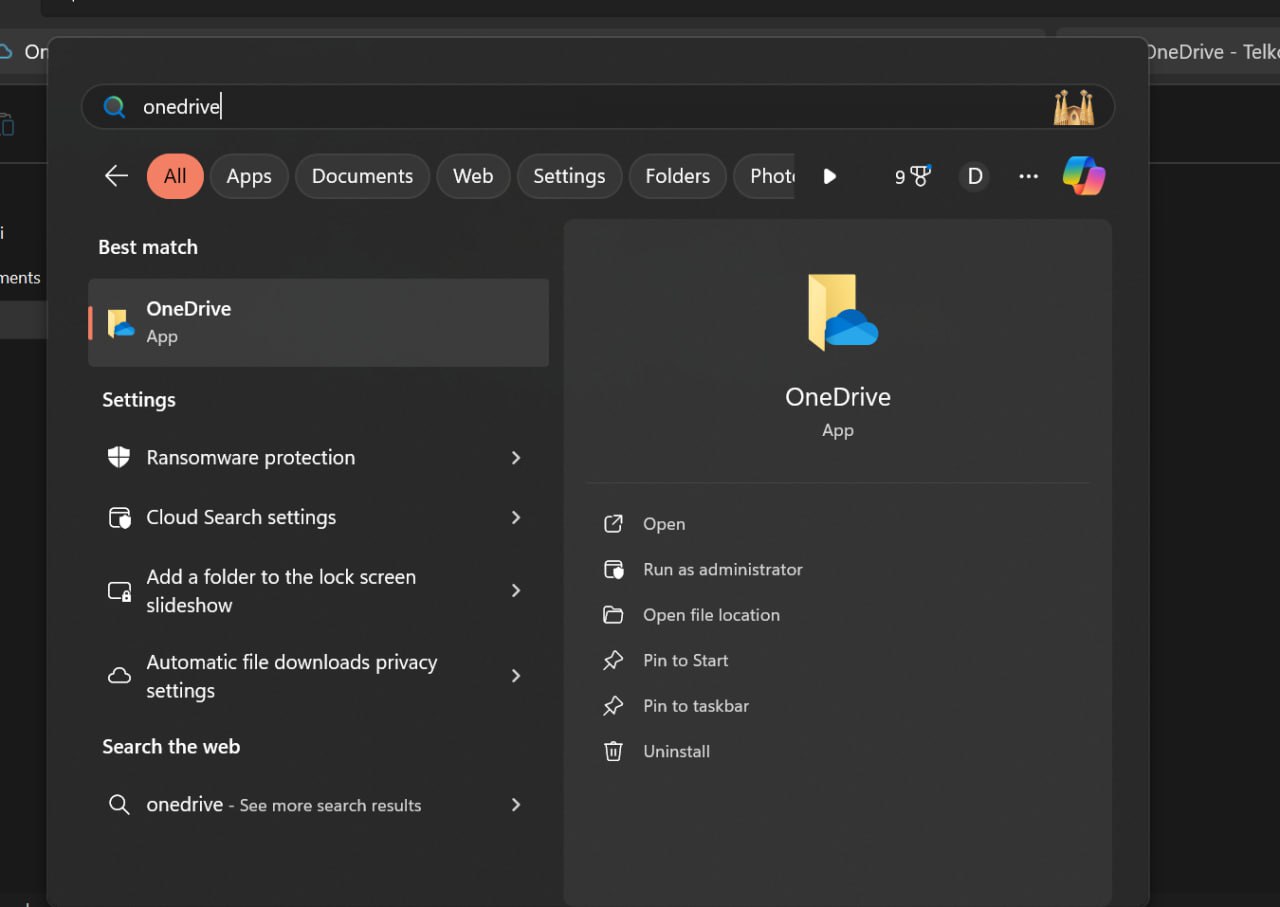
1. Please type in the Windows search bar “OneDrive” > Open OneDrive
2. Displaying folder contents One Drive User Account ybs. If you want to delete the content of “OneDrive file”You can directly select the desired folder. The image below is an example of a folder name. “testing”.
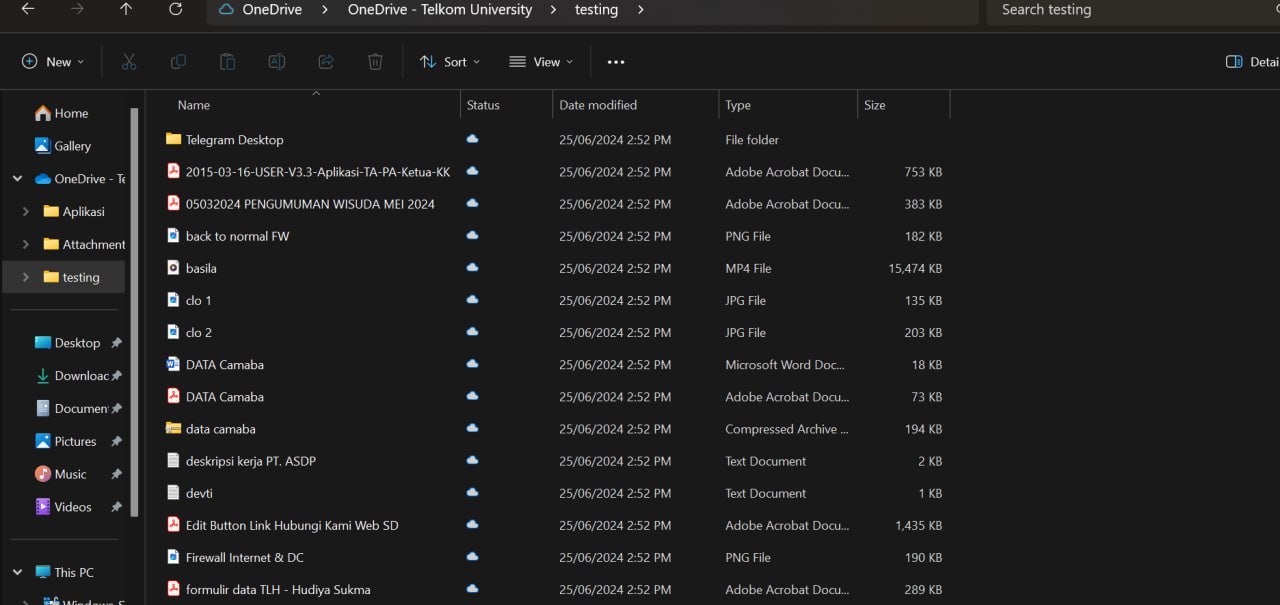
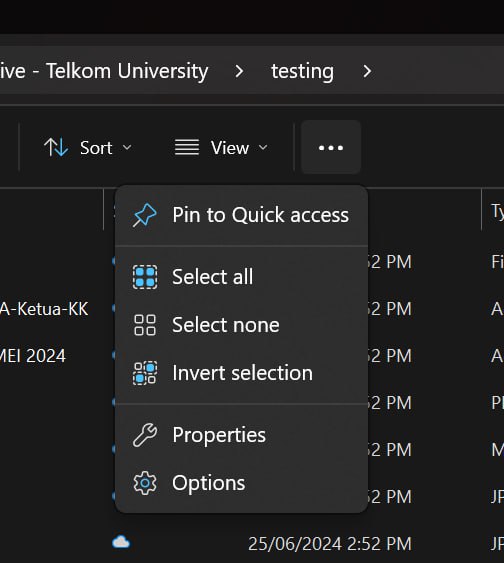
3. If you want to delete Overall file content, direct key CTRL + A Then the key button “Delete”. Or if you want to go directly “Delete Folder” tinggal pilih folder yang ingin dihapus.
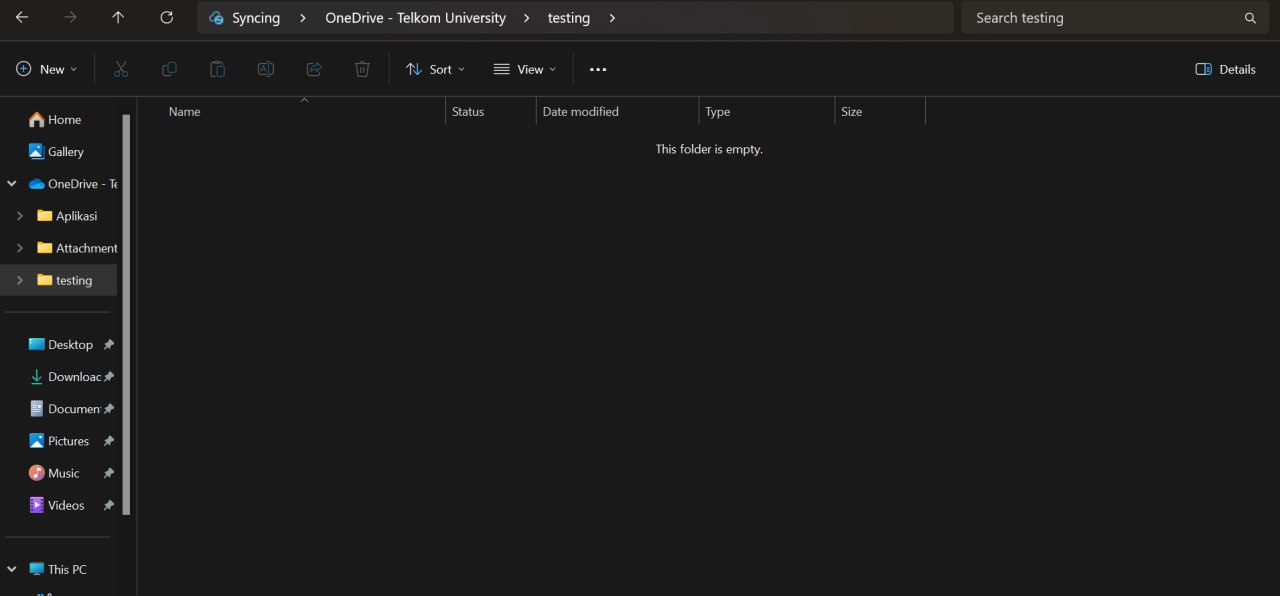
4. Tampilan Isi folder yang dihapus kosong
Catatan: JIka ingin melihat isi file yang sudah terhapus bisa langsung kunjungi One Drive Website, akses melalui office.com > pilih menu “OneDrive” > Pilih “Keranjang Sampah”
