Comprehensive Guide to Resolving Unlicensed Microsoft Office Product Issues
Microsoft Office remains the backbone of modern office activities. From document creation in Microsoft Word, data processing at Microsoft Excel, until presentation through Microsoft PowerPoint, everything is integrated into one solid ecosystem.
However, behind this convenience, not a few users face technical problems due to the complexity of the system offered by Microsoft's products. One of the most common problems is notifications “Unlicensed Product”. This issue appears simple, but it can lead to limitations in accessing features and even prevent optimal use of Office.
What is an “Unlicensed Product” in Microsoft Office?
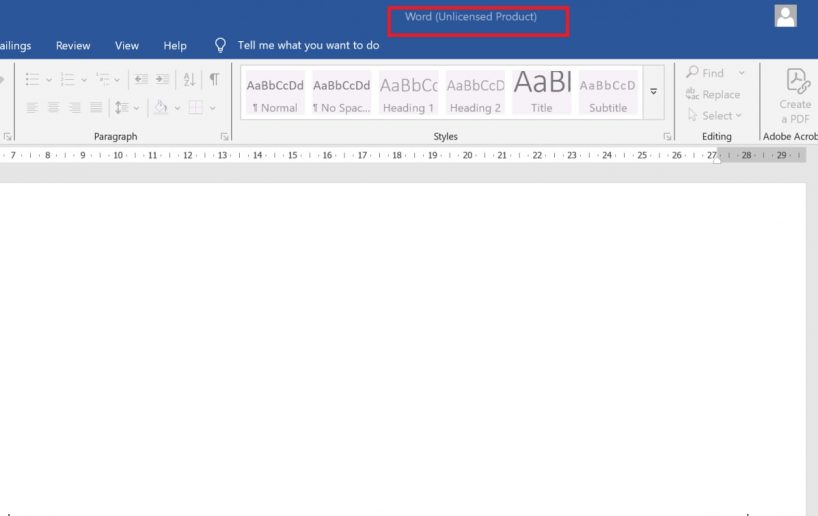
Notification Unlicensed Product indicates that the Office application you are using has not been officially activated or there are problems with the license. This could be because the license is no longer valid. Impact:
- Feature becomes limited (read-only)
- Cannot edit document
- Cannot save document
- Annoying recurring notifications keep popping up.
This problem is often considered trivial, but if left unaddressed, work productivity can be significantly disrupted.
Common Causes of Unlicensed Product Notifications
Here are some of the most common causes:
Does not have an official license
The most common cause is the user not having an official Microsoft license. Without a license, the system will automatically mark the product as invalid.
2. The Trial Period Has Ended
The "Unlicensed Product" notification also frequently appears on trial versions, which usually only last for 30 days. After that:
- Access to this feature is restricted
- Unlicensed status appeared
3. Activation Failed or Out of Sync
Sometimes, if a license has been entered but cannot be verified by the server, or if the Microsoft account is not synchronized, this can also cause an "Unlicensed Product" error.
4. System Damage or Application Bugs
Corrupted installation files or bugs in the system can also cause Office to fail to read the license.
5. Inaccurate Time & Date Settings
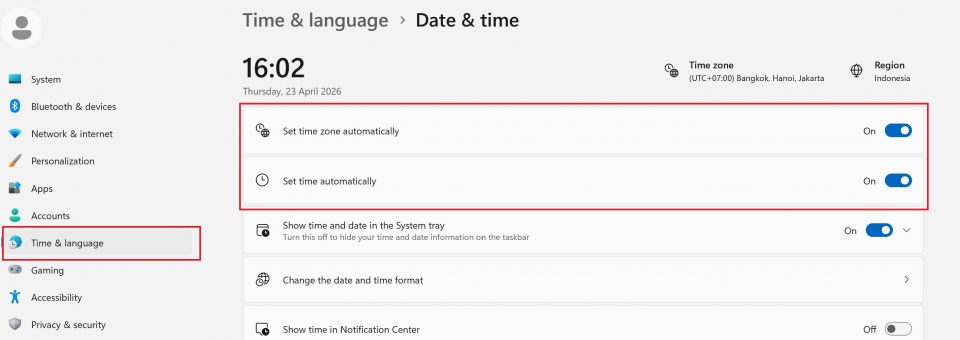
Small things like incorrect time and date settings can cause activation systems to fail because they don't match Microsoft's servers.
How to Fix Unlicensed Product Microsoft Office
Here are the steps you can take systematically:
1. Ensure Office Activation Status
The first mandatory step:
- Open one of the Office applications
- Log in File → Account
- Check the section. Product Information
Expected result:
- Product Activated Aman
- Activation Required Reactivation required
2. Enter Official Product Key
If not yet active:
- Open File → Account
- Click Change Product Key
- Enter official license code
- Follow activation instructions
Ensure:
- The code is not wrong
- The license is still valid
3. Perform Microsoft Office Repair
If the problem originates from the system:
Steps:
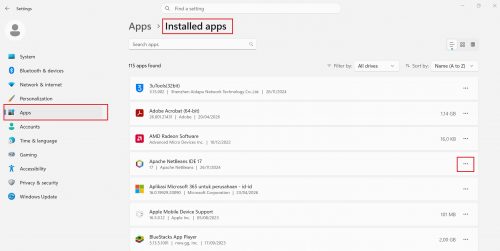
- Log in Settings
- Choose Apps → Apps & Features
- Search Microsoft Office
- Click Modify
- Choose one:
- Quick Repair Fast without internet
- Online Repair → more complete (recommended)
5. Check Date & Time Settings
This small mistake is often overlooked, yet it's crucial.
How to fix:
- Log in Settings → Time & Language
- Activate
- Set time automatically
- Set time zone automatically
- Restart device
6. Update Microsoft Office to the Latest Version
Older versions often have activation bugs.
How to update:
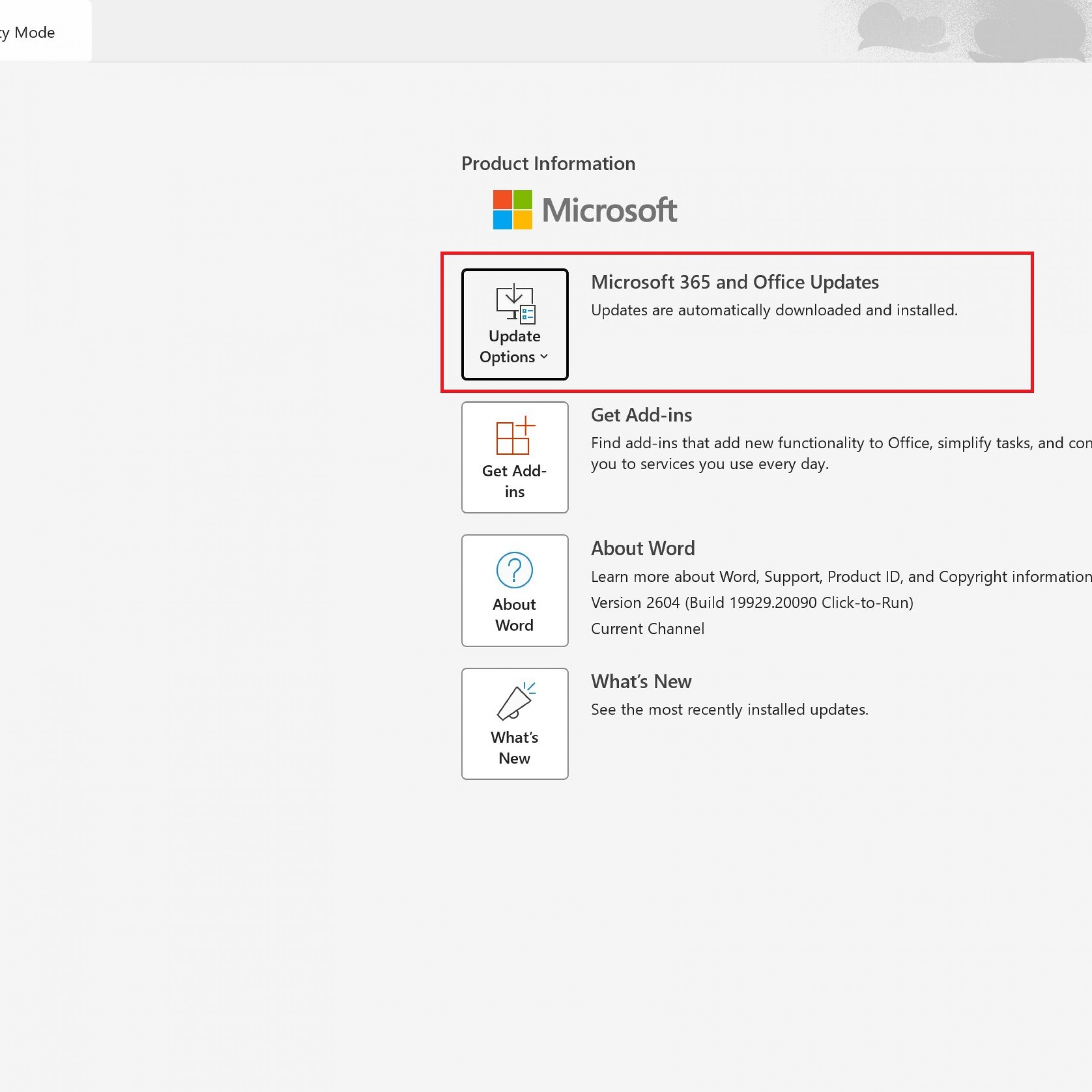
- Open Office
- Log in File → Account
- Click Update Options → Update Now
Important addition:
- Enable automatic Windows updates so Office is also updated
Additional Tips to Prevent Problems from Recurring
To be safer in the future:
- Use an official license (avoid cracks/illegal software)
- Connect Office with an active Microsoft account
- Routine system and application updates
- Avoid reinstalling from untrusted sources
FAQ (Frequently Asked Questions)
Can Microsoft Office be used for free?
Some features are available through the web version, such as Office Online, but the full feature set remains paid.
Why is Office often not responding?
Usually because:
- RAM full
- Too many apps running
- File is too large
Is it safe to use activator?
It is not recommended because:
- License violation
- Malware risk
- Unstable for long-term use
Conclusion
Problem Unlicensed Product On Microsoft Office, it's not just a regular notification. It indicates a fundamental problem with your license or the application system. The causes can be varied, ranging from an invalid license to system errors.
By following the steps above, from checking the license and inputting the product key to repairing and updating, you can effectively resolve this issue.
If the problem persists, the best solution is to ensure the use of a legitimate license so that Office can be used to its full potential without interruption.
